How Wi-Fi Works and How to Improve Signal
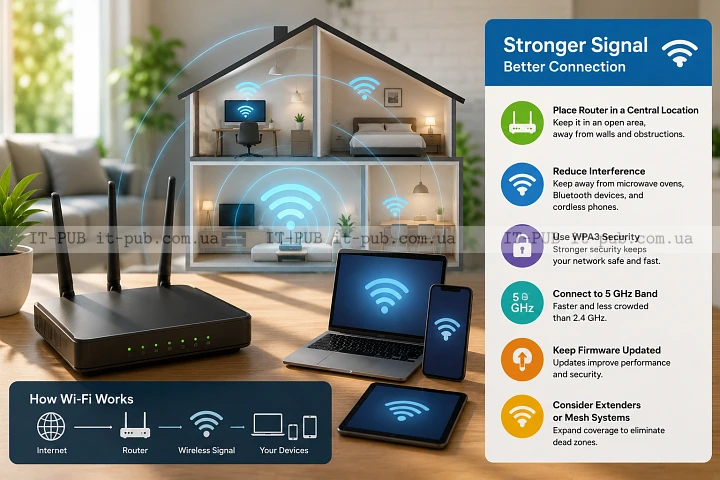
Wi-Fi feels simple when it’s working properly. Your device connects, the internet shows up, and you don’t think much about what’s happening in the background. But that convenience depends on a wireless system shaped by radio waves, distance, physical obstacles, and the quality of your setup.
Once you understand how Wi-Fi works, it becomes much easier to improve Wi-Fi signal at home. You don’t need deep networking knowledge to get better Wi-Fi coverage. In many cases, a few practical adjustments are enough to make the connection feel noticeably more stable.
How Wi-Fi sends data without cables
Wi-Fi is a way of moving data between your device and a router or access point without using a physical cable. It does that through radio waves. Your phone, laptop, smart TV, or other device uses a wireless adapter to send and receive those signals.
The router acts as a bridge between your home network and the internet. It broadcasts a wireless signal so nearby devices can connect. When you open a website or start streaming a video, your device sends a request to the router, which passes that traffic along. The reply comes back through the same path.
All of this happens in a fraction of a second, but it’s still a chain. If one part of that chain weakens, the connection can slow down, become inconsistent, or drop entirely.
Why Wi-Fi signal gets weaker
Wi-Fi signal strength is not only about the router itself. The surrounding environment matters just as much. Radio waves move through the air, but they lose strength as they travel farther from the source.
Walls, floors, furniture, and household appliances can all weaken the signal. Dense materials are especially difficult for wireless signals to pass through. Concrete, brick, metal, and even water can interfere with wireless network performance. A router placed in a corner or hidden behind a TV often has to push through more obstacles than necessary.
Wi-Fi interference is another common problem. Wireless networks share space with other devices and nearby networks. Neighboring routers, Bluetooth devices, microwaves, baby monitors, and some cordless phones can all affect the connection. Usually, that doesn’t cause a complete outage. More often, it shows up as slower speeds, lag, or a connection that feels unstable.
Distance plays a role too. The farther a device is from the router, the harder it is to maintain a clean signal. A connection may still exist when the signal is weak, but performance tends to suffer.
The role of frequency bands in everyday use
Most modern Wi-Fi networks use more than one frequency band. That helps devices balance range and speed depending on where they are and what they’re doing.
The lower band usually travels farther and handles obstacles better. It’s useful when you need coverage across several rooms or through walls. The higher band typically delivers faster speeds over shorter distances and works best when you’re closer to the router.
That’s one reason a device can work perfectly in one room and struggle in another. It’s not always about your internet plan. Sometimes the device is simply connected to a band that doesn’t fit the location very well.
Even small changes can matter. Moving a laptop a few steps, or using it from a slightly different spot, can sometimes improve Wi-Fi signal more than you’d expect.
Where you place the router matters more than many people think
Router placement is one of the easiest and most effective home Wi-Fi tips. A router hidden in a cabinet or tucked behind furniture often performs worse than one placed out in the open.
In most homes, the best spot is central, elevated, and clear of large obstacles. A shelf or table is usually better than the floor. The goal is simple: let the signal spread with as few barriers as possible.
It also helps to keep the router away from electronics that may add interference. Kitchen appliances, large metal objects, and dense bundles of cables can all make coverage less consistent.
Multi-floor homes add another layer of complexity. A router on one level may not cover the floor above or below evenly. In that kind of layout, placement matters even more.
Why speed tests and signal bars do not tell the whole story
A strong signal does not always mean fast internet. And a weak-looking signal does not always mean the network is unusable. Signal bars are only a rough indicator.
Wireless network performance depends on several things at once. The router may be nearby, but the network could still be congested. A device may show a decent connection while still struggling because of interference or crowding. And of course, the internet service itself can limit speed no matter how good the Wi-Fi is.
That’s why troubleshooting works best when you look at the full path. If one device performs badly in one room, the issue may be local signal quality. If every device is slow everywhere, the problem may be broader than Wi-Fi alone.
Simple ways to improve Wi-Fi signal at home
The first fix is often the simplest one: move the router. A better location can improve Wi-Fi signal without adding any new hardware. Try placing it somewhere more open and central, and avoid enclosing it in furniture.
If your router has external antennas, check their position. Different angles can help depending on the shape and layout of the space. There’s no single perfect orientation, but adjusting them can sometimes improve weak areas.
It’s also worth clearing unnecessary obstacles. If the router is sitting behind a television, inside a cabinet, or on the floor near metal objects, relocating it may help more than you expect.
Another practical step is to keep high-demand devices away from the weakest parts of the network when possible. A video call or large download taking place far from the router is more likely to struggle. In some homes, moving a desk or entertainment device can make the connection more reliable without changing anything else.
How to reduce Wi-Fi interference
Wi-Fi interference is one of the most overlooked reasons for poor performance. Because Wi-Fi relies on radio waves, it can be affected by other signals in the same space.
If your router and devices support different channels or bands, switching to a less crowded option can help. Many routers try to handle this automatically, but they do not always make the best choice for every environment. In apartment buildings or dense neighborhoods, nearby networks often compete for the same airspace.
Physical sources of interference matter too. A microwave can disrupt wireless performance while it’s running. Bluetooth devices usually have a smaller effect, but in busier setups they can still add noise. The more wireless devices you have in one area, the more important it becomes to keep the network setup tidy and sensible.
Sometimes you can’t eliminate interference completely. In practice, the better move is often to place the router where it’s less exposed to it.
When a Wi-Fi extender, mesh system, or access point helps
A single router is not always enough. Large homes, thick walls, and awkward layouts can create dead zones that better placement alone won’t solve.
A Wi-Fi extender can help by repeating the signal into a weaker area. It’s a straightforward option, though performance still depends on the quality of the signal it receives in the first place.
A mesh system is built to provide better Wi-Fi coverage across a larger space. It uses multiple units working together to spread the network more evenly. That can be a strong option when one router cannot reach every room reliably.
An access point is another solution, especially where a cable can be run to a second location. It creates a new wireless area that connects back to the main network through wired infrastructure. That usually delivers more stable performance than repeating an already weak signal.
The right choice depends on the layout of the space and how much coverage you need. In a small home, router placement may be enough. In a more difficult layout, extra hardware can make a real difference.
Why devices themselves can affect connection quality
The router is only half of the connection. The device on the other end matters too. Older phones, laptops, and smart devices may not support the same wireless standards as newer hardware, which can limit speed and reliability.
A device with a weak wireless adapter may struggle even when the router is strong. Cases, physical damage, outdated drivers, and power-saving settings can also affect performance. On laptops, aggressive battery-saving features may reduce wireless responsiveness.
If one device has a much worse connection than others in the same spot, the problem may be with that device rather than the network. Comparing several devices in the same location is often one of the quickest ways to narrow down the cause.
How to think about coverage in a practical way
Good Wi-Fi is not just about getting a strong signal in one room. It’s about having stable coverage where you actually use the network. A router placed perfectly for one device can still leave another area with poor service.
A practical way to approach this is to think about the rooms that matter most. That might be a home office, living room, bedroom, or kitchen. Then pay attention to how the connection behaves in those spaces. Once the weak area is clear, the fix is usually easier to plan.
Sometimes the answer is as simple as moving the router. Sometimes it means changing equipment. Often, it’s a mix of both.
What to do when Wi-Fi still feels unstable
If the connection still feels unreliable after changing placement, step back and look at the wider setup. Restarting the router can clear temporary issues. Updating the router firmware can help too, since manufacturers sometimes improve stability and compatibility through software updates.
It’s also worth checking how many devices are active on the network at the same time. Smart home devices, streaming boxes, laptops, and phones all compete for airtime. As the network gets busier, good coverage and efficient routing matter more.
And sometimes the bottleneck is not Wi-Fi at all. The wireless network can only distribute what it receives from the modem or upstream connection. If wired speeds are poor too, the main issue may lie outside the wireless setup.
Building a better wireless setup over time
Improving Wi-Fi doesn’t always mean buying new equipment right away. Often, the biggest gains come from small, sensible changes. Better router placement, less interference, and smarter use of extra hardware can turn an unreliable connection into a much steadier one.
The most useful way to think about it is as a system, not just a box that sends internet through the air. Wi-Fi signal strength, coverage, device quality, and the layout of the space all affect the result. When one part is weak, the overall experience suffers.
Once you understand how Wi-Fi works, the problem becomes much less mysterious. You can make practical decisions instead of guessing, and that usually leads to a faster, more stable connection where it matters.