Cybersecurity Basics for Everyday Users That Work
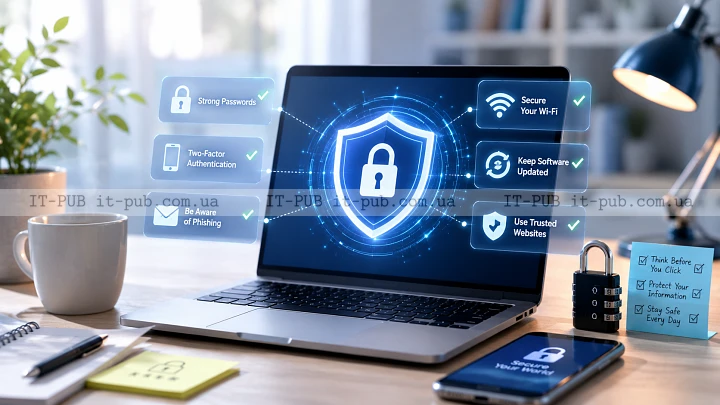
Cybersecurity basics for everyday users come down to a simple reality: most common risks are easier to reduce than people think. You do not need deep technical knowledge to protect your accounts, devices, and personal data. A few solid habits, a bit of attention, and the right settings go a long way.
The aim is not to remove every possible risk. That is not realistic. The real goal is to make everyday attacks harder, limit the damage if something does go wrong, and build habits you can actually stick with.
Start with the threats people actually face
For most users, cyber threats do not look like dramatic movie hacking scenes. They usually show up as fake emails, weak passwords, stolen phones, harmful attachments, or websites that look real at first glance but are not.
Phishing scams are one of the most common problems. They are designed to get you to reveal a password, payment details, or a code sent to your phone. The message might come by email, text, social media, or even a phone call. Usually, it tries to create pressure, warning that an account will be closed or a package cannot be delivered unless you act right away.
Password reuse is another major issue. When the same password appears across several sites, one breach can open the door to multiple accounts. Malware matters too, but for everyday users it often gets in through unsafe downloads, fake updates, or bad attachments rather than anything especially sophisticated.
Once you understand the usual paths of attack, it becomes much easier to focus on what actually matters.
Build stronger password habits
Password security still matters, even if passwords feel like a constant annoyance. A strong password is hard to guess and not reused anywhere else. In practice, long passphrases are often easier to remember than short, complicated strings full of random symbols.
A sensible approach is to use a unique password for every important account, especially email, banking, shopping, and social media. If keeping track of all of them sounds unrealistic, a password manager can help by storing them securely and making it easier to create stronger ones.
Skip obvious choices like names, birthdays, pet names, or simple patterns. Those are among the first things attackers try. It also makes sense to change a password if you find out a service was breached or you suspect an account may have been exposed.
The goal is not to reset everything all the time. It is to stop relying on passwords that are easy to predict or easy to reuse.
Turn on two-factor authentication wherever possible
Two-factor authentication, or 2FA, adds a second step to the login process. That extra step might be a code from an app, a text message, or a security key. If someone gets your password, they still need that second factor to get into the account.
For regular users, this is one of the most effective protections available. It matters even more for email, since email is often the starting point for password resets on other services. If someone takes over your email account, the damage can spread quickly.
Not every form of 2FA offers the same level of protection, but almost any two-factor authentication is better than relying on a password alone. If app-based codes or a security key are available, they are often a better choice than text messages. Still, using some form of 2FA is far better than using none.
Learn to spot phishing without overthinking it
Most phishing messages lean on urgency, fear, or curiosity. They might claim there is a problem with your account, a failed payment, or an unexpected delivery. Often, they include a link to a fake login page built to steal your credentials.
One careful habit makes a big difference: do not click suspicious links immediately. Open the service directly in your browser or app and check there instead. Pay attention to the sender address, spelling, and tone. A lot of phishing scams still contain small errors, awkward wording, or unusual requests.
Attachments deserve the same caution. If you were not expecting a file, treat it carefully. The same applies to QR codes in random messages or on stickers, since they can send you to harmful sites just as easily as a normal link.
The safest move is often the simplest one. Slow down. Most phishing works because people feel rushed.
Keep your devices updated
Software updates are not just about new features or design changes. Very often, they include security fixes that close holes attackers could use to break into a device or abuse an app.
That applies across the board: phones, laptops, tablets, browsers, and everyday apps. Turning on automatic updates is one of the easiest forms of device security because it reduces the need to remember everything yourself. If automatic updates are not available, it helps to check regularly.
Old software can become a weak point even when you are otherwise careful. A strong password will not do much if the device or app itself is outdated and exposed. Updates are not optional extras. They are part of basic protection.
Be careful with public Wi-Fi and unknown networks
Public Wi-Fi is convenient, but it is not always private. On a shared network, other people may be able to see more of your traffic than you expect, especially if a site or app is not using secure connections. Some networks are fake as well, set up specifically to trick people into joining them.
It makes sense to avoid logging into sensitive accounts or making payments on unfamiliar public networks when possible. If you do need to use public Wi-Fi, stick to encrypted connections and avoid sending highly sensitive information.
For important tasks, mobile data is often the safer option if you have it. A trusted home network is usually a better choice than a random hotspot in a café or airport. The basic idea is simple: unfamiliar networks deserve less trust.
Protect your phone as carefully as your laptop
People often treat phones as less risky than computers, but that does not really fit how we use them. A phone can hold messages, photos, banking apps, email, saved passwords, and plenty of other personal data. Losing control of it can expose a lot.
Use a screen lock, whether that is a strong PIN, passcode, fingerprint, or face unlock supported by the device. Keep the operating system updated. Check app permissions from time to time, especially for location, contacts, microphone, camera, and files. An app should only get access to what it genuinely needs.
It also helps to be selective about what you install. Stick to trusted app stores and avoid sideloading apps from unknown sources unless you fully understand the risk. On a phone, one careless decision can have a bigger impact than people expect.
Back up your data before you need it
Backups are easy to ignore until something goes wrong. They will not prevent an attack, but they can make recovery much less painful. If a device fails, a file disappears, or ransomware locks your data, a backup can save a lot of trouble.
A useful backup is stored separately from the device you use every day. Cloud backups can help, and external drives can too if they are used properly. What matters most is making sure the backup actually works and includes the files you care about.
A lot of people assume their photos, documents, and contacts are safe just because they exist on a device or inside an account. That is not always enough. If the account gets locked or the device is damaged, a backup can be the difference between a small inconvenience and a serious loss.
Review privacy settings and app permissions
Cybersecurity basics for everyday users also overlap with privacy more than many people realize. If an app collects more data than it needs, the impact of a breach or misuse can be much worse. That is why it is worth reviewing privacy settings on major accounts and devices.
Look at which apps can access your location, camera, microphone, contacts, and photos. Remove access that no longer makes sense. The same goes for connected accounts and third-party logins. If you do not use a service anymore, disconnect it.
Social media and other online accounts usually include settings that control what other people can see. Keeping those settings reasonable lowers exposure and makes it harder for scammers to gather personal details for convincing fake messages.
Watch for scams that use trust and emotion
Not every cyber threat is technical. A lot of scams work because they sound personal and believable. A message may pretend to come from a friend, a bank, a delivery service, a boss, or a support team. The point is to push you into acting before you stop to think.
If something feels off, verify it through a separate channel. If a friend sends a strange request, confirm it by calling or messaging them another way. If a company says there is a problem, go to the official website or app yourself instead of using the link in the message.
These scams often rely on social pressure. They may ask for a code, a gift card, a payment, or remote access to your device. A useful rule here is straightforward: do not hand over control just because a message sounds urgent or polite.
Make safe browsing a habit
Safe browsing starts with paying attention to the address bar and the site in front of you. Watch for misspellings, unusual domain names, and pages that ask for login details in a way that feels off. A polished design does not prove a site is safe.
Avoid downloading files from random websites. If you need software, use the official source whenever possible. Be cautious with browser pop-ups claiming your device is infected or that you need to install something immediately. Those warnings are often fake.
Your browser settings matter too. Keeping the browser updated and using built-in security features can help block known threats. Extensions can be useful, but only install ones you trust and actually need. Too many add-ons can create more risk than value.
Know what to do if something goes wrong
Even careful people slip up. That is why it helps to know what to do after a suspected security problem. If you clicked a suspicious link, entered a password on a fake site, or noticed unusual account activity, act quickly.
Change the password for the affected account and for any other account that reused the same password. If possible, sign out of other sessions and enable 2FA. Check account recovery options, email forwarding rules, and recent login activity. On a device, run a security scan if you have trusted security software available.
If payment details may have been exposed, contact the relevant provider as soon as possible. If a phone is lost or stolen, use built-in tools to lock or erase it when needed. A fast response can often prevent a lot of extra damage.
Keep cybersecurity simple enough to maintain
The best online safety tips are usually the ones you can keep following without turning them into a burden. A complicated routine that falls apart after a week is not much use. It is better to focus on a small set of actions that cover a lot: unique passwords, two-factor authentication, regular updates, careful link checking, and backups.
You do not need to become paranoid. You do need to become a little more deliberate.
That shift is often enough to avoid many of the problems everyday users run into. Cybersecurity is not only for specialists. It is part of normal digital life, much like locking your front door or checking that you still have your bag before leaving a café. With a few steady habits, you can use technology with more confidence and less risk.