How Cloud Storage Works in Everyday Use
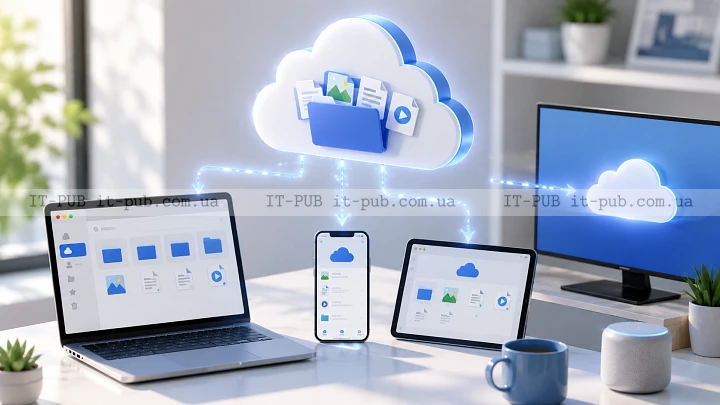
Cloud storage is now part of everyday digital life. People use it to save photos, share work files, back up devices, and open documents from different places. It feels simple on the surface, but it helps to understand what is actually going on behind it.
At the most basic level, cloud storage moves your files from a local device to remote servers run by a provider. That changes how data is accessed, how it is protected, and how it stays available across devices. If you know the basics, it is much easier to use it confidently at home or at work.
What cloud storage actually is
Cloud storage is a service that keeps your files on remote computers instead of only on your phone, laptop, or external drive. Those remote computers are usually part of large data centers connected to the internet. When you upload a file, you send a copy to that service so it can be stored and retrieved later.
The “cloud” is not some abstract place where files magically drift around. It is just a convenient label for infrastructure you do not manage yourself. You use an app or a web interface, and the provider takes care of the hardware, maintenance, and availability in the background.
For most people, the biggest advantage is convenience. You can open files on different devices without manually copying them back and forth. For businesses, online file storage also makes it easier to share data, centralize documents, and avoid depending too much on a single machine.
How files move into the cloud
It starts with an upload. A browser or app sends the file from your device over the internet to the provider’s servers. When that upload is complete, the service stores the file and connects it to your account.
Many services also support file syncing in the cloud. If you save a file in a synced folder on one device, it is copied to the cloud and then mirrored on your other connected devices. Edit that file on your laptop, and the updated version can appear on your phone or desktop after syncing finishes.
That syncing behavior is a big part of why cloud storage feels so smooth in daily use. You do not have to think too much about where a file actually “lives.” It shows up in the same place across devices while the service keeps versions aligned behind the scenes.
Where your data is stored
Your files are usually stored in one or more data centers. These facilities are built to keep servers powered, cooled, monitored, and connected. A provider may spread data across multiple machines and locations to improve reliability.
That matters because a single server failure should not make your file disappear. Another copy, or another part of the system, can still keep it available. This is one reason cloud storage can be more resilient than keeping only one copy on a personal device.
The exact setup varies from one provider to another, but the goal is consistent: keep data available, protected, and recoverable. Most users never need to manage those technical details directly, though it is useful to know that cloud storage relies on a network of systems rather than one isolated disk.
Why cloud storage is so accessible
Cloud storage is built around internet access. You can sign in through a browser, desktop app, or mobile app and reach your files from almost anywhere. That is a big part of how to access files from anywhere without carrying a drive around or staying tied to one computer.
The other piece is account-based access. Instead of looking for a USB stick or a specific hard disk, you log in and see the files connected to your account. The service identifies you and shows the data that belongs to you.
That is convenient, but it also changes the way you think about access. Losing a device does not always mean losing the file, as long as it was uploaded and your account is still secure. Losing access to the account, on the other hand, can be more serious than misplacing a local drive.
Cloud storage explained through syncing and backup
People often treat syncing and backup as if they were the same thing. They are not.
Syncing keeps files matched across devices. If you delete a synced file in one place, that deletion may also reach your other devices. Syncing is excellent for convenience and collaboration, but on its own it is not a full safety net.
Cloud backup works differently. The point is to preserve a separate copy so data can be restored after loss, damage, or accidental deletion. A backup service may keep older versions or restore points, which helps if a file is overwritten or removed by mistake.
In practice, a lot of users need both. Syncing supports day-to-day work. Backup protects you when something goes wrong. Knowing the difference helps avoid a common mistake: assuming every cloud folder automatically behaves like a backup vault.
What happens when you open a file
When you open a file stored in the cloud, your device does not always download the whole thing permanently. Sometimes the service streams the data or loads only what is needed at that moment. In other cases, it caches a local copy so the file opens faster the next time.
Before delivering the file, the service checks that it exists and confirms your permissions. If the file is shared, it also verifies whether you are allowed to view it or edit it.
That is why cloud storage can feel quick and flexible even when the file is not sitting on your laptop’s internal drive. The provider handles retrieval in the background, while the app makes the experience feel almost local.
Security in cloud storage
Security is one of the first concerns people have about cloud storage, and fairly so. Putting files online means trusting a provider to protect them from unauthorized access and technical problems.
Good cloud storage security usually includes encryption, access controls, and monitoring. Encryption helps protect data while it is moving and while it is stored. Access controls limit who can open or change files. Monitoring helps detect suspicious behavior and unusual login activity.
Still, security is shared responsibility. A provider can secure the platform, but users also need strong passwords, multi-factor authentication when it is available, and careful sharing habits. Even a well-designed system can be undermined by weak account protection or careless link sharing.
If the data is sensitive, it is worth looking closely at who can access it in practice. Some services offer stronger privacy controls than others. Reading the provider’s security model matters, especially for business documents, personal records, or regulated information.
How sharing works without sending attachments
One of the most useful parts of cloud storage is sharing. Instead of attaching a large file to an email, you can send a link or grant access directly through the service.
That makes collaboration much easier. People work from the same file instead of passing around multiple versions. It also cuts down on inbox clutter and reduces the chance of sending the wrong attachment or an outdated copy.
Sharing can be fairly flexible. You might let someone view a file, comment on it, or edit it. Some services also let you set expiration dates or restrict downloads. The details vary, but the model stays the same: the file remains in the cloud, and access is controlled through permissions.
Why version history matters
Version history is not always the first feature people notice, but it is one of the most useful. It keeps track of earlier file states so you can roll back changes when something goes wrong.
That helps when a document is edited incorrectly, overwritten, or damaged. Instead of starting from scratch, you can often return to an earlier version and recover what you need. It is especially valuable in team settings, where several people may work on the same file.
Version history also makes editing less stressful. When people know an earlier copy can be restored, they are usually more comfortable making changes and collaborating. It is a practical safety net, not just a technical extra.
Cloud storage versus local storage
Local storage means a file lives on a device you physically own, like a laptop, phone, or external drive. Cloud storage means that file is stored remotely and accessed over the internet.
Local storage can be faster for certain tasks, and it works without a connection. It also gives you direct control over the device holding the data. The downside is that it is vulnerable to loss, theft, hardware failure, and accidental damage.
Cloud storage is stronger when it comes to mobility, sharing, and resilience. It makes files easier to use across devices and can simplify backup. The tradeoff is dependence on internet access and on the provider’s systems.
In real life, many people use both. Important files may stay local for quick access and also live in the cloud for syncing and protection. That mix often gives the best balance between convenience and control.
What businesses look for in cloud storage
For organizations, cloud storage is about more than saving files. It is also about controlling access, keeping records, and supporting teamwork at scale.
Businesses usually pay close attention to permissions, audit trails, retention policies, and integration with other tools. They want to know who can open a file, who changed it, and how long the data is kept. They also need storage that fits with collaboration software, backup systems, and security policies.
Reliability matters just as much. If employees cannot reach documents when they need them, work slows down. That is why companies often choose services with strong uptime, recovery options, and centralized administration.
The technical setup may be more complex than personal use, but the basic principle does not change. Store data remotely, control access carefully, and make it easy for the right people to use the right files.
How to choose a cloud storage service
The right service depends on what you need it for. A student, a freelancer, and a large company are not looking for exactly the same thing.
Start with access. Do you need a browser interface, desktop syncing, mobile apps, or all of them? Then look at sharing and collaboration features. If you work with other people, version history and permission controls matter a lot.
Security should be part of the decision from the beginning. Check whether the service offers strong authentication, encryption, and clear account recovery options. If you are storing important personal or business data, pay attention to how the provider handles privacy and data protection.
It also makes sense to consider storage limits, file size support, and how easy it is to move data in or out. A service should not trap your files or make ordinary tasks feel harder than they need to be. Good cloud storage should reduce friction, not add another layer of it.
Common mistakes people make
One of the most common mistakes is assuming cloud storage automatically backs up everything. If syncing is turned on, unwanted deletions and edits can spread quickly. That is why separate backup habits still matter.
Another issue is oversharing. A public link may be convenient, but it should be used carefully. If a file is sensitive, access should be limited to specific people whenever possible.
People also overlook the account itself. A weak password or a reused login can expose every file behind it. Because cloud storage puts so much data in one place, account security becomes especially important.
And there is one more false assumption: that files are safe forever just because they are online. Services change, accounts expire, and policies differ. Keeping a second copy of critical data is still a sensible move.
Why cloud storage keeps growing in everyday use
Cloud storage matches the way people work. Devices change, teams work across locations, and files need to be available in more than one place. A remote storage model solves many of those practical problems without forcing users to run servers of their own.
It also scales easily. One person might use it for photos and documents, while a large organization uses the same basic model for shared workspaces, archives, and backups. The use case changes, but the underlying idea stays the same.
Once you understand how cloud storage works, you can use it much more effectively. You know when syncing makes sense, when backup matters more, how sharing should be handled, and where local storage still has an advantage. That is really what cloud storage explained well should do: turn a convenient tool into a reliable part of your digital routine.